Loading standardization profiles...
0%
Automation Pipeline: Standardize

Format everything
instantly.

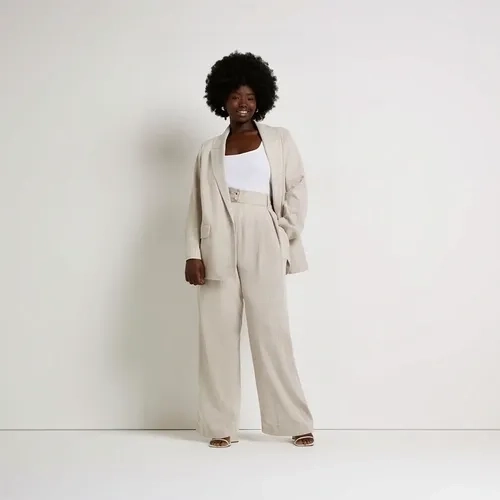
Automatically adjust canvas margins, map colors, correct pixel density, and dynamically optimize incoming vendor assets to match brand specifications. Avoid manual editing workflows entirely.
ZYNG_KERNEL // MAGIC_RESIZE
ACTIVE
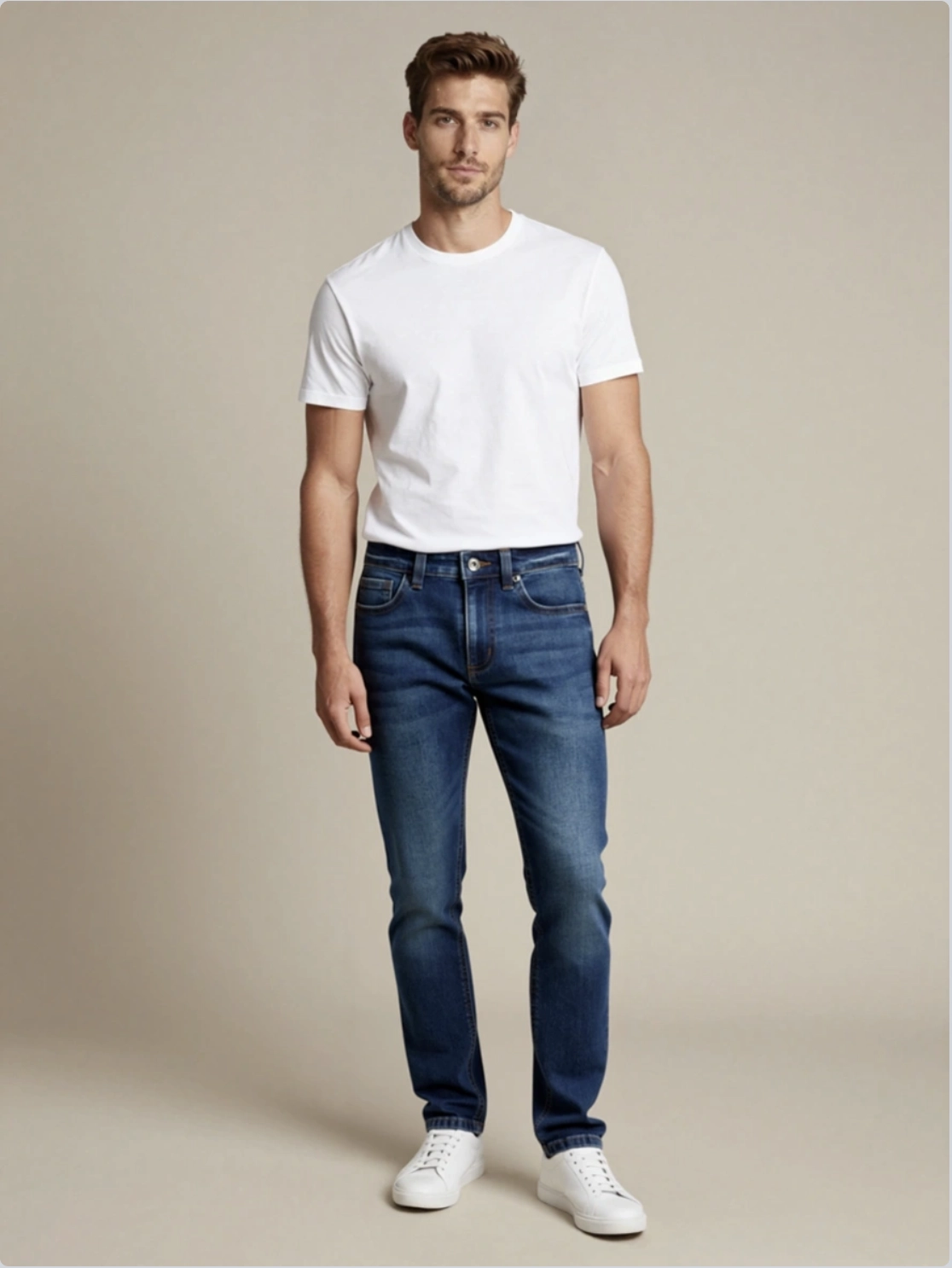
RAW VENDOR ASSET
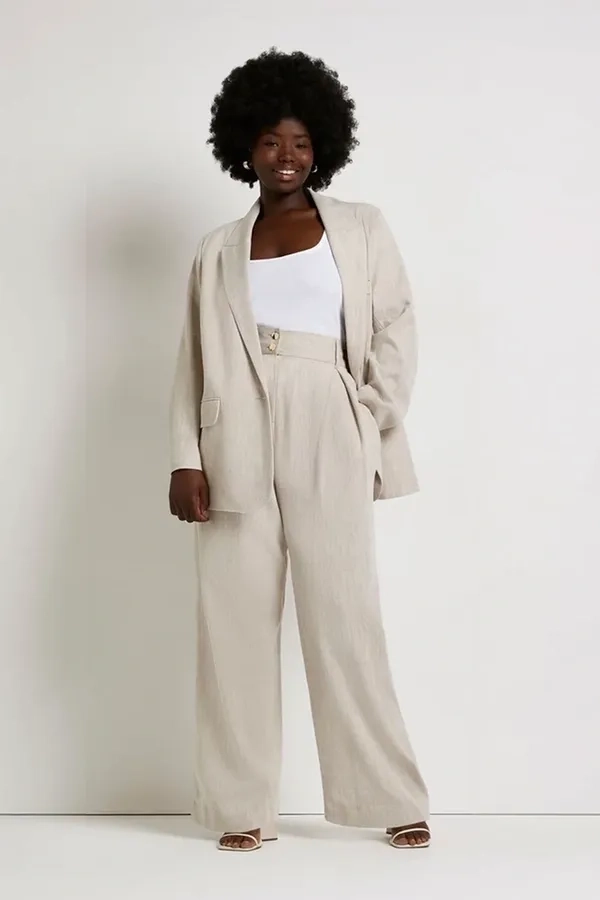
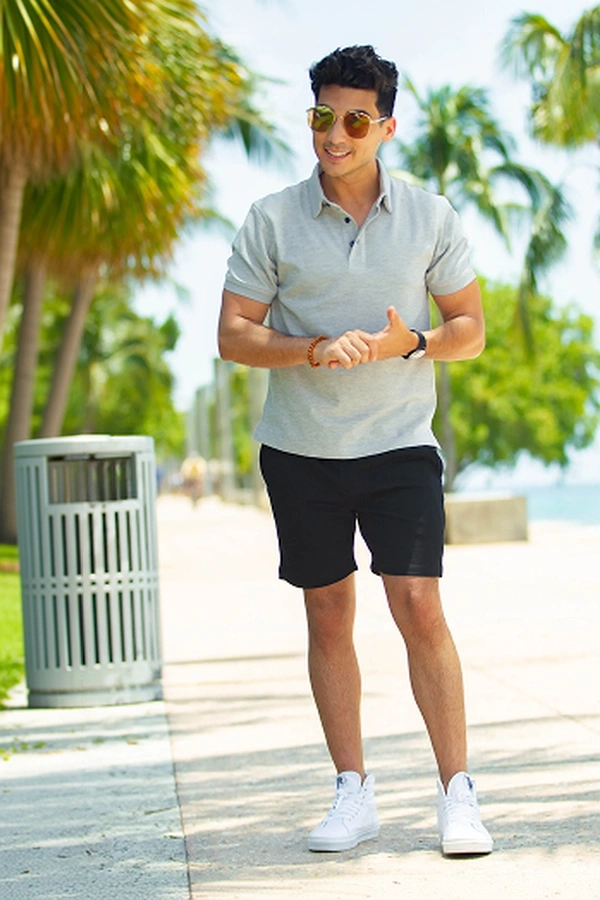
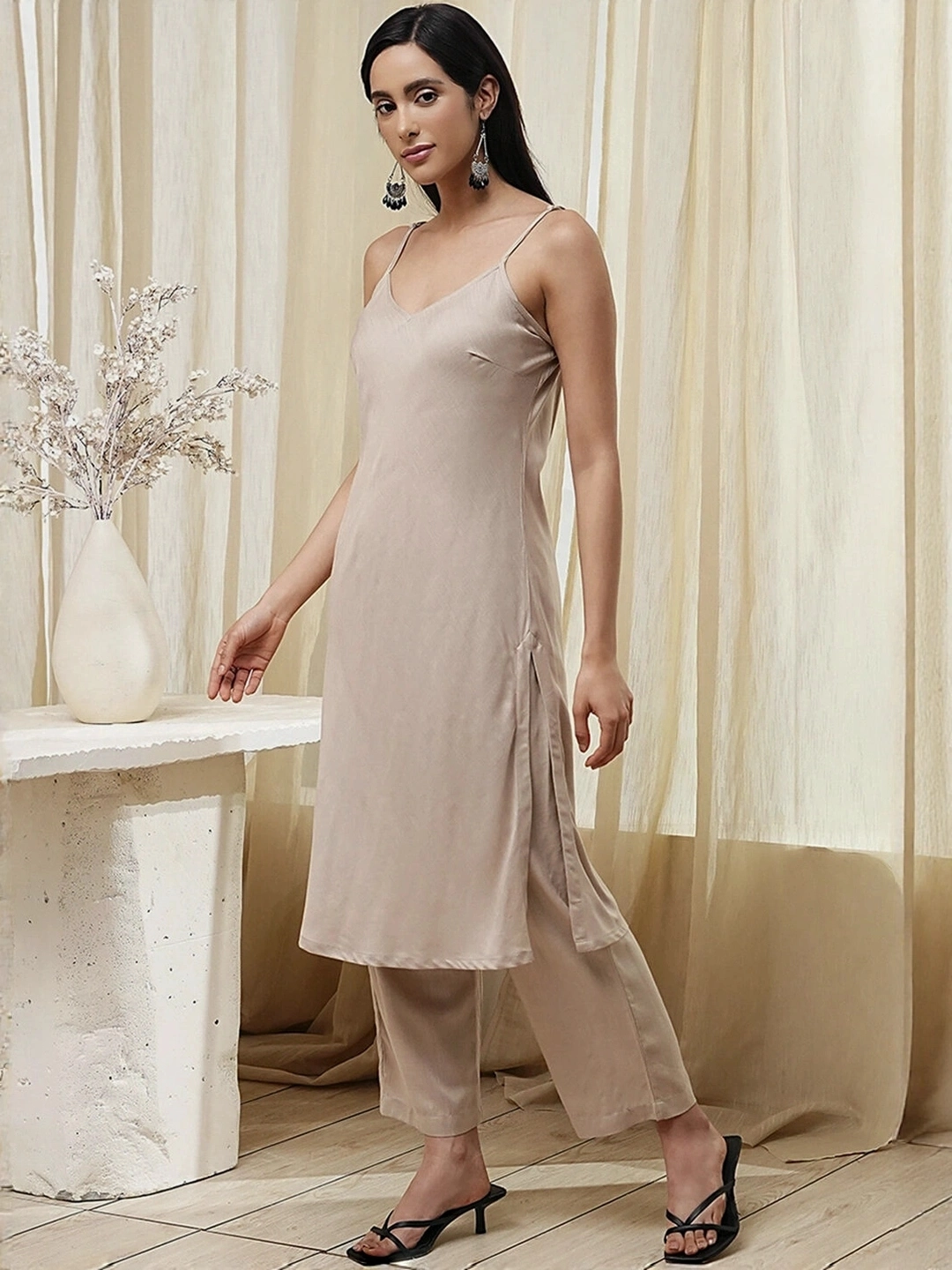
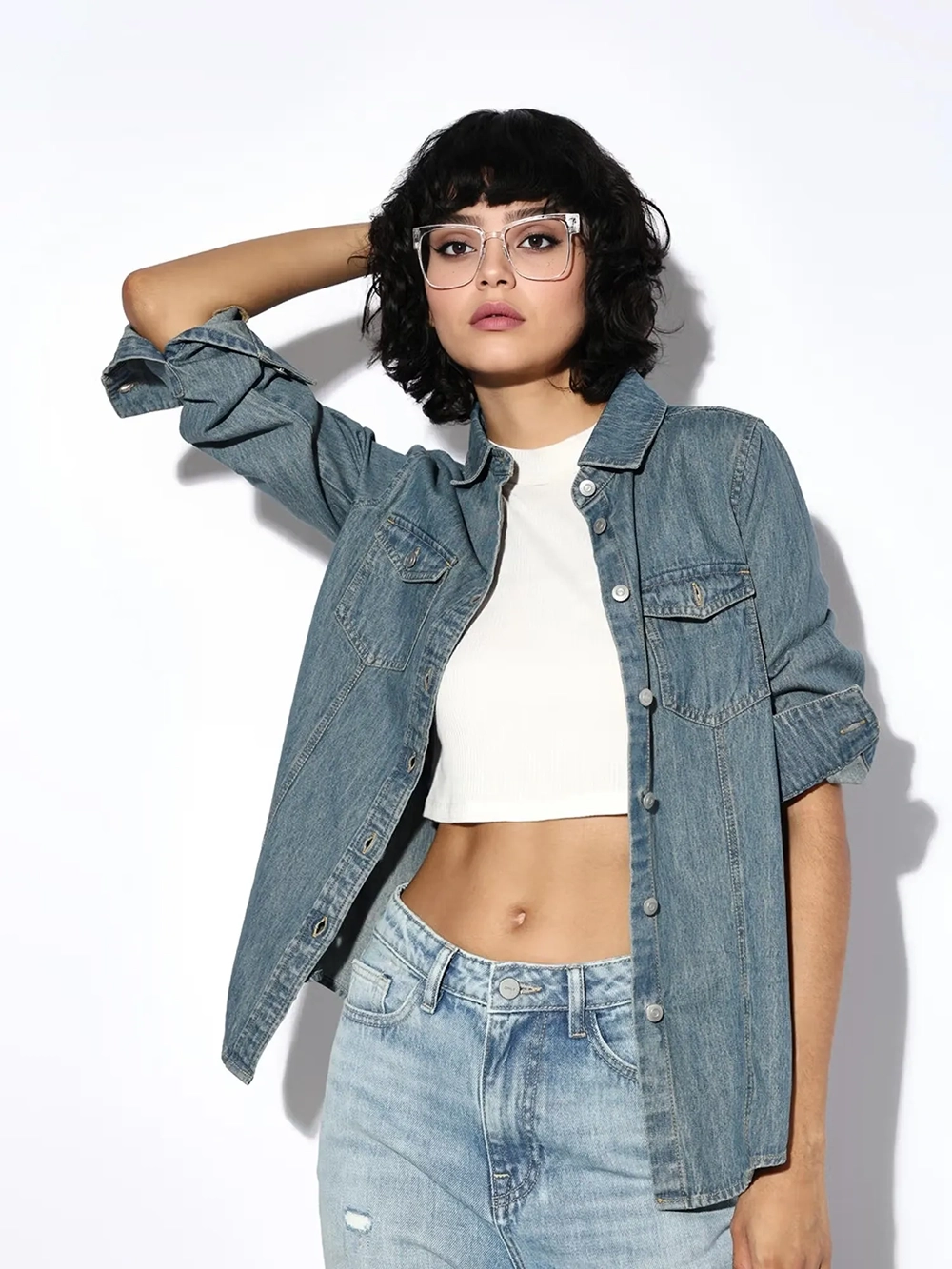
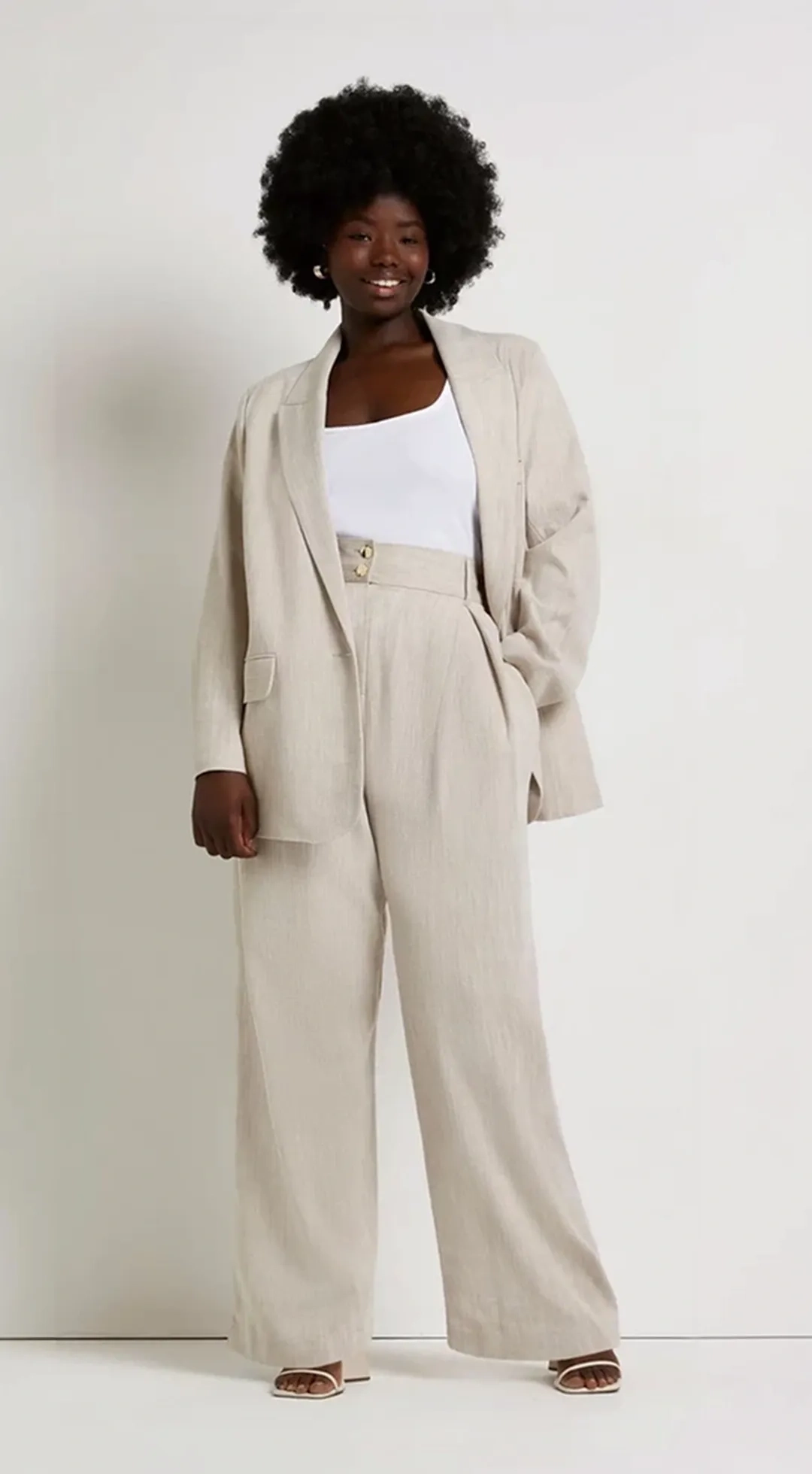
Base Raw Asset
Ingested Base Image
PROCESS
ALIGN
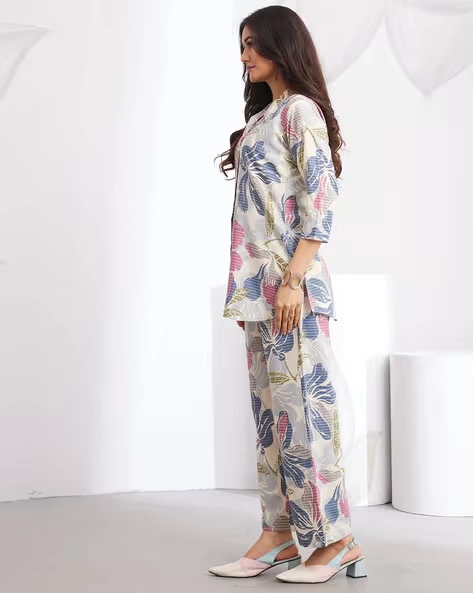
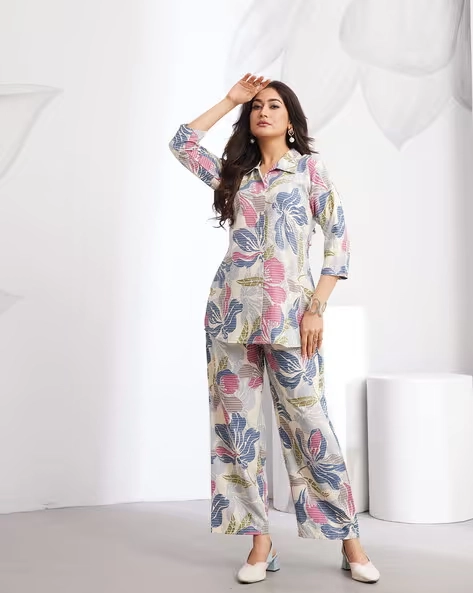
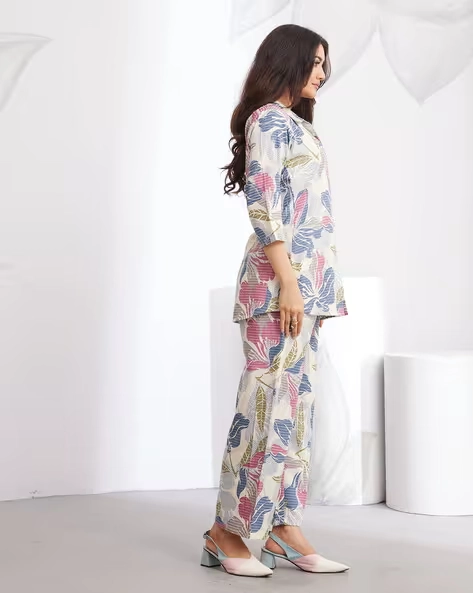
Engine output variant 1
1:1 Square
Engine output variant 2
2:3 Portrait
Engine output variant 3
9:16 Stories
01 Transformation Sandbox
Active Analysis

The Standardization Suite

Six functions, one rendering core — every demo below runs live. Combine them into your own standardization recipe: one raw shot in, every channel-ready variant out.

Magic Resize

Outpaint one hero shot into every ratio your channels demand — no re-shoots.

AI Colour Shift

Swap the background to any brand hex — the subject stays segmented and untouched.

Crop Body Part

Cut waist-up, torso and detail crops from a single full-body master.

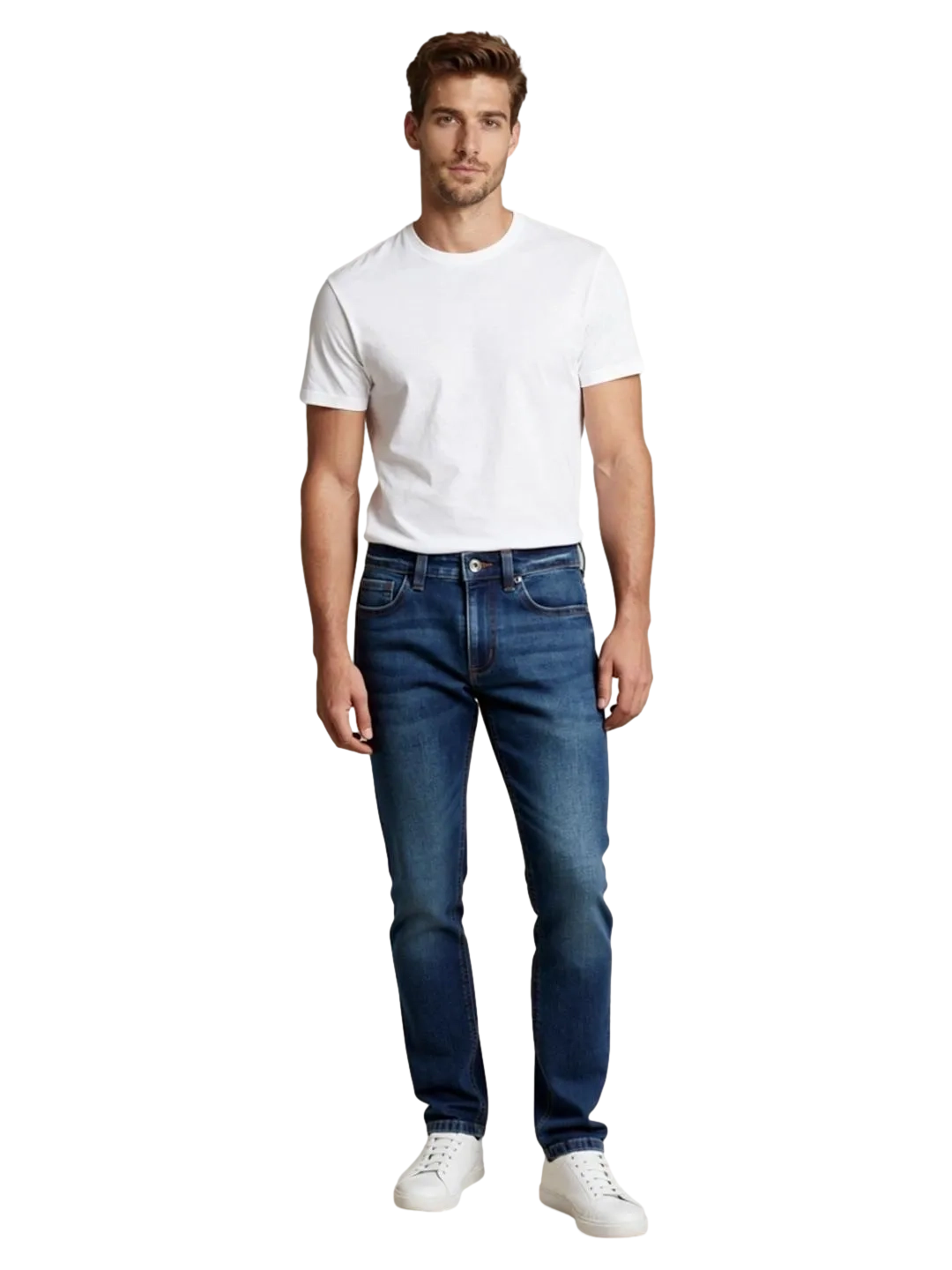
Remove & Clip BG

Lift subjects onto transparent or pure white, vector clip path embedded.

Smart Canvas

Lock identical padding across the catalog so grids align pixel-perfect.

Output & Format

Ship one master as WebP, AVIF or JPG — sized to each channel's budget.

Live Demo · Magic Resize STANDARDIZED ASSET
Processing Log
PROCESSING RESOLVED
Try in Sandbox →
03 ZYNG OS AI Studio
Endpoints Live

Multiple functions,
one pipeline.

Each endpoint is purpose-built for a specific visual edit — call them individually or chain them in sequence. Every function accepts custom parameters per SKU, channel, and brand rule, so outputs are always contextual, never templated.
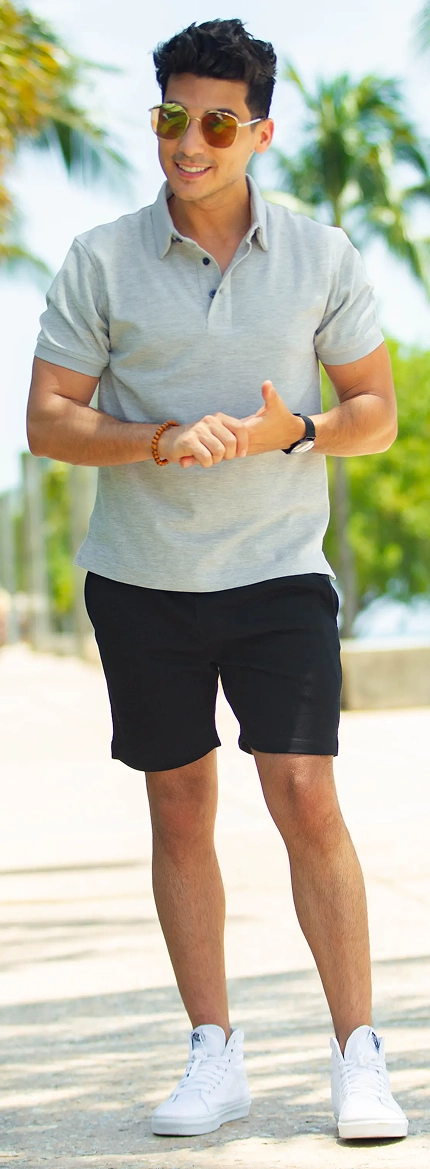
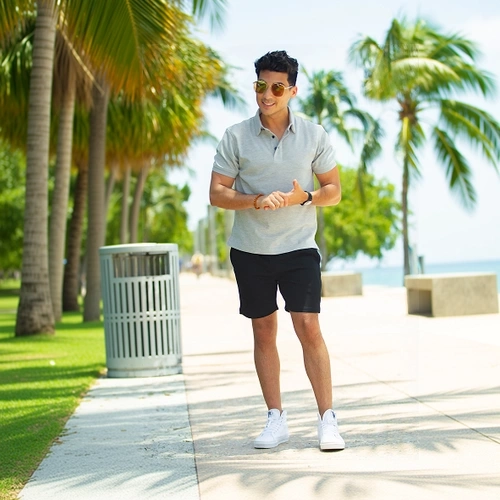
Background Removal Model Swap Subject Focus AI Colour Shift Smart Swatch Magic Resize Precision Crop Remove Elements Canvas Control
Try in Sandbox
BATCH PROTOCOL // RESIZE_ALPHA
raw
RAW
PROCESS
Square 1:1
Portrait 2:3
Stories 9:16
BODY CROP ENGINE // ANATOMY_AWARE
raw
RAW
PROCESS
3/4 View
Hip to Top
Hip to Bottom
COLOUR SHIFT // BG_SWAP
raw
RAW
PROCESS
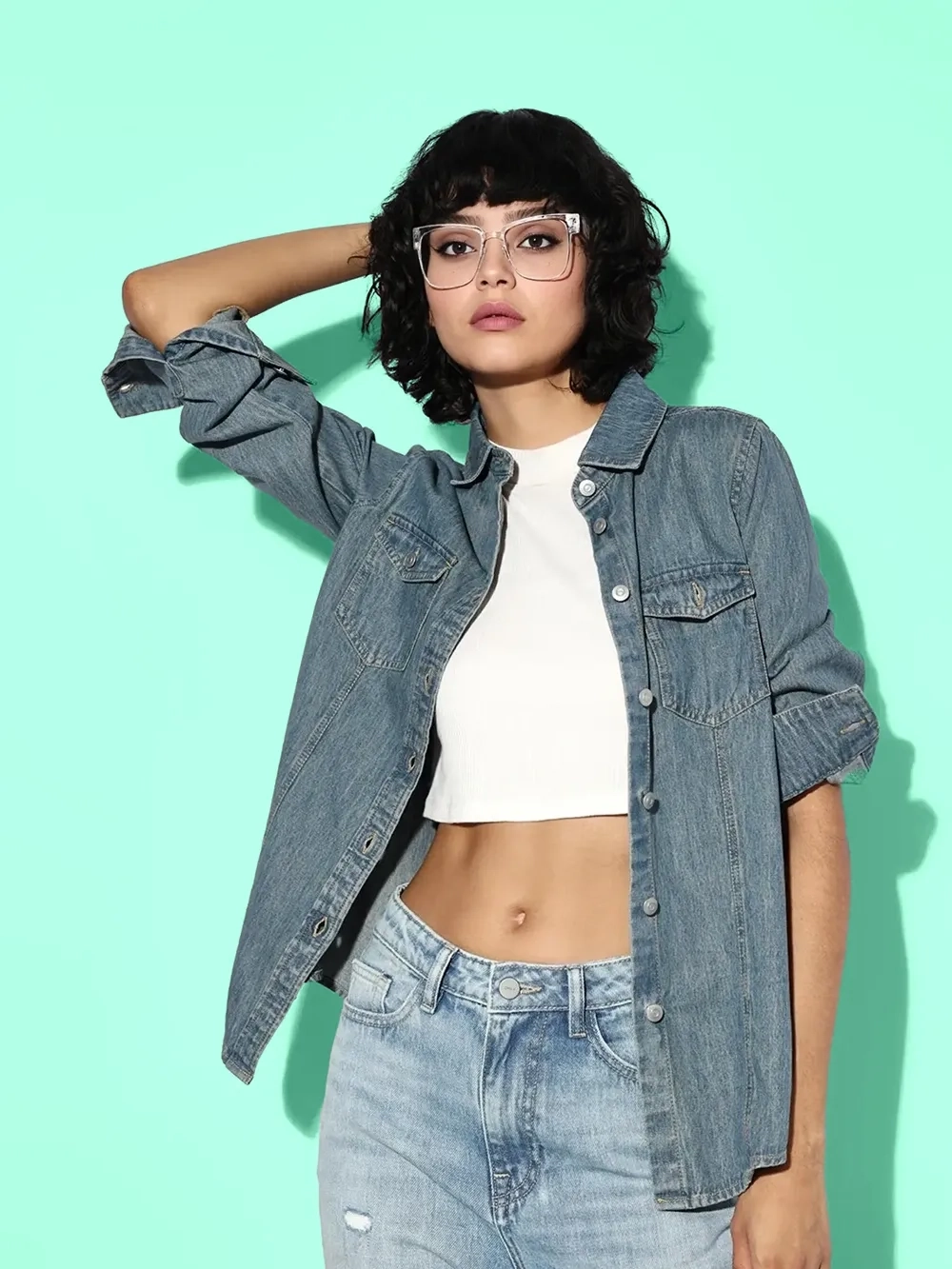
BG Green
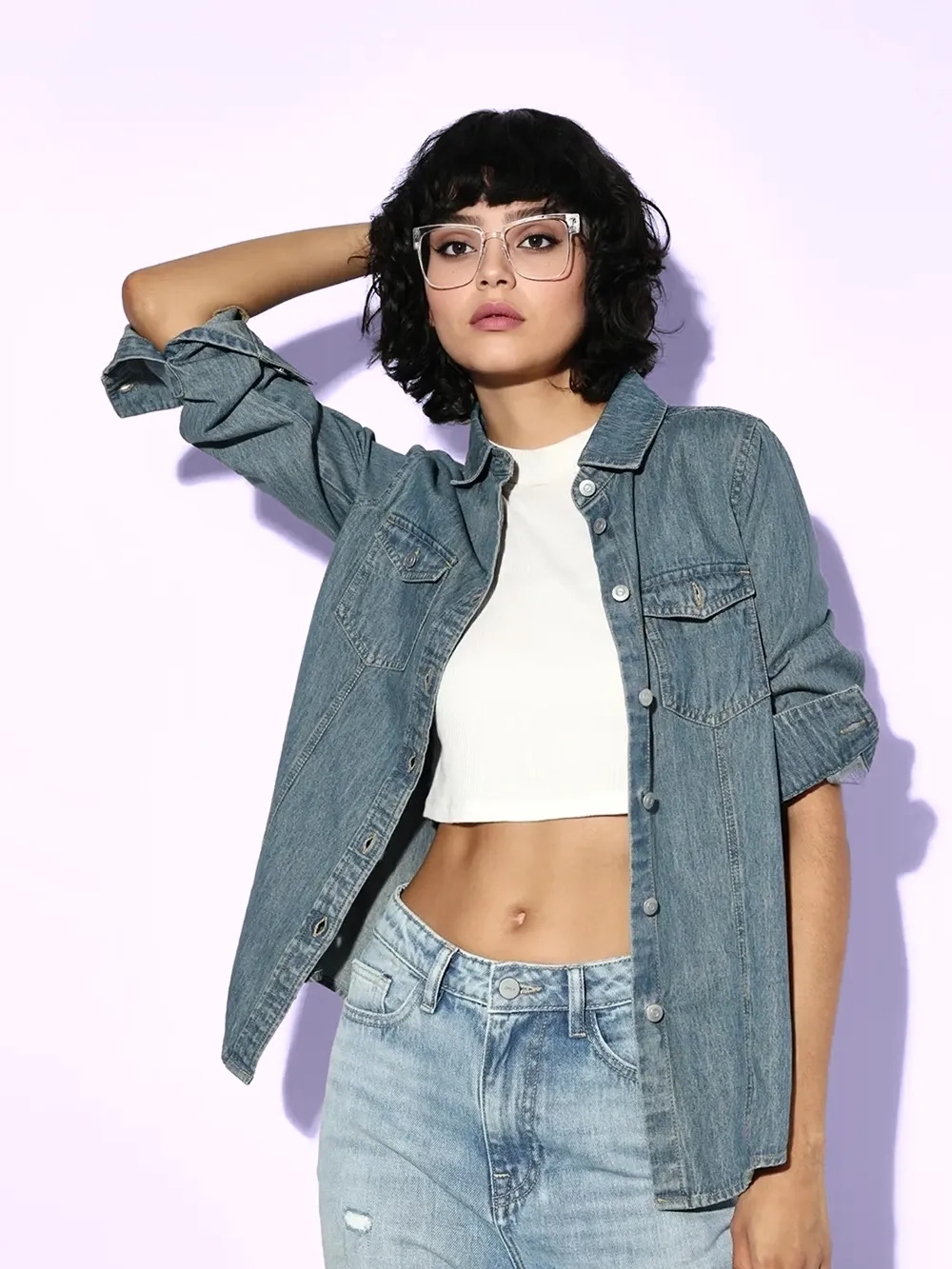
BG Purple
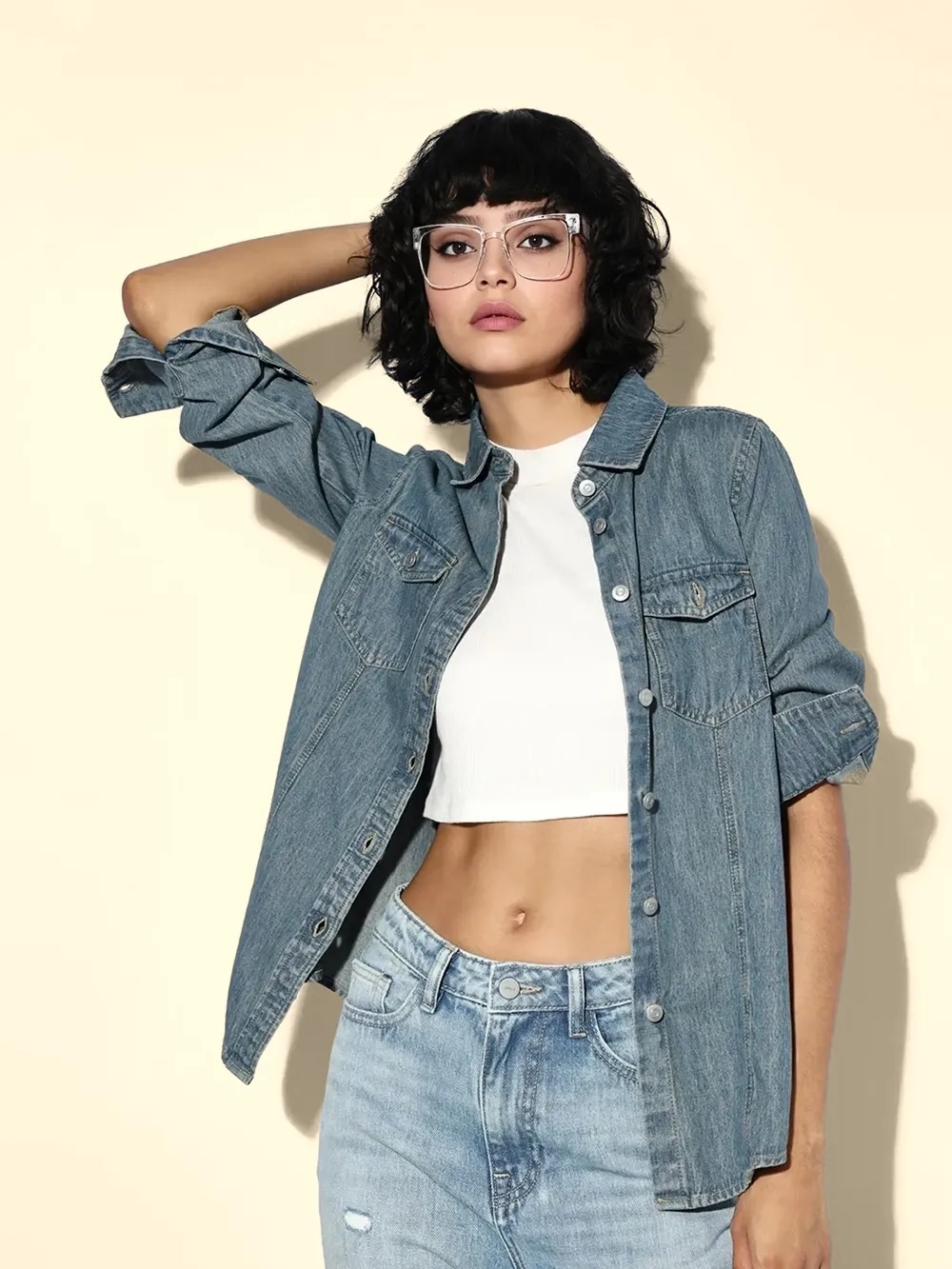
BG Warm
BG CONTROL // REMOVAL_SUITE
raw
RAW
PROCESS
BG Removed
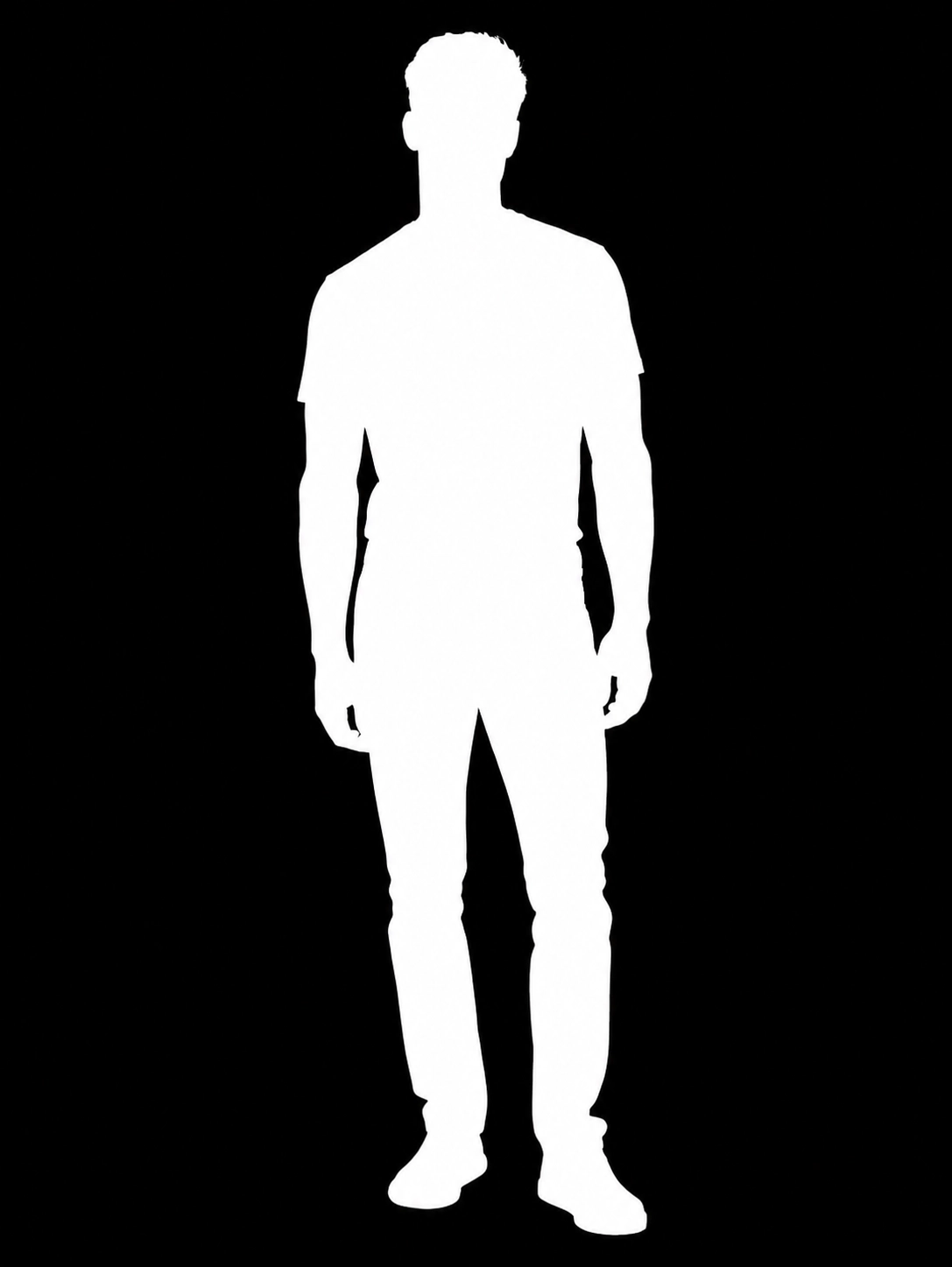
Mask Layer
Clipped
BATCH PROTOCOL // RESIZE_ALPHA
raw
RAW
PROCESS
Square 1:1
Portrait 2:3
Stories 9:16
BODY CROP ENGINE // ANATOMY_AWARE
raw
RAW
PROCESS
3/4 View
Hip to Top
Hip to Bottom
COLOUR SHIFT // BG_SWAP
raw
RAW
PROCESS
BG Green
BG Purple
BG Warm
BG CONTROL // REMOVAL_SUITE
raw
RAW
PROCESS
BG Removed
Mask Layer
Clipped
04 SKU Sequencing & Platform Output
Catalog Intelligence

Define the Order.
Ship Every SKU.

Raw photography arrives unordered. ZYNG OS classifies every shot by angle and re-sequences the full SKU folder to your platform’s exact rules — zero manual sorting.
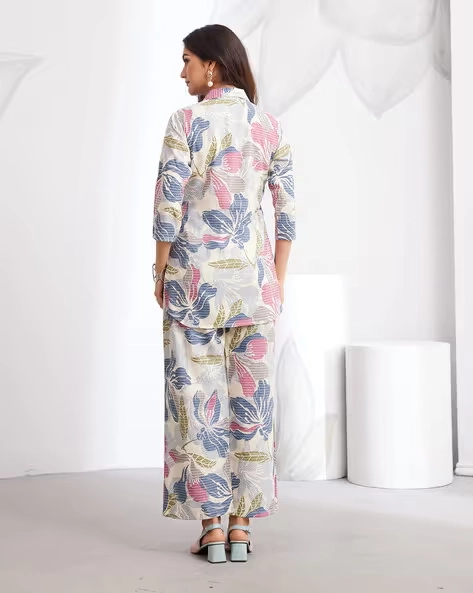
Raw Ingest · Unordered 4 shots · random order
Back shot IMG_4521.jpg Back View
Left shot IMG_4518.jpg Left View
Front shot IMG_4515.jpg Full Front
Right shot IMG_4519.jpg Right View
ZYNG AI — Classifies & Resequences
BACK VIEWPOS 01
LEFT VIEWPOS 02
FULL FRONTPOS 03
RIGHT VIEWPOS 04
Platform Sequenced · Amazon Standard 4 positions · correct order
Position 01 - Full Front 01 Full Front
Position 02 - Back View 02 Back View
Position 03 - Left View 03 Left View
Position 04 - Right View 04 Right View

Rules are fully configurable. Define any shot order per platform, SKU category, or campaign type. Mark positions as required or optional, apply different templates per batch or per SKU tag via API or dashboard, and version-control your sequence logic across the full catalog.

Platform templates
Per-SKU overrides
API or dashboard
Req / optional positions
05 Conditional Workflow Engine
Rules Active

If this, then
standardize that.

Write a rule once — every clothing image routes itself. The engine reads the garment, the shot type and the destination platform, then applies the exact crop, ratio and format each asset needs.
zyng.rules — conditional.yml
MATCH R-01IF channel == "shopify"     THEN 4:5 · pad 8% · bg #FFF pdp
MATCH R-02IF channel == "instagram"     THEN 1:1 · webp · center-safe feed
MATCH R-03IF channel == "tiktok"     THEN 9:16 · webp · ≤350 KB shop
LIVE ROUTING EVALUATING
SKU_KNIT_SWEATER.raw
GARMENTKNITWEAR SHOTON-MODEL CHANNELSHOPIFY
RULES ENGINE R-01 MATCHED
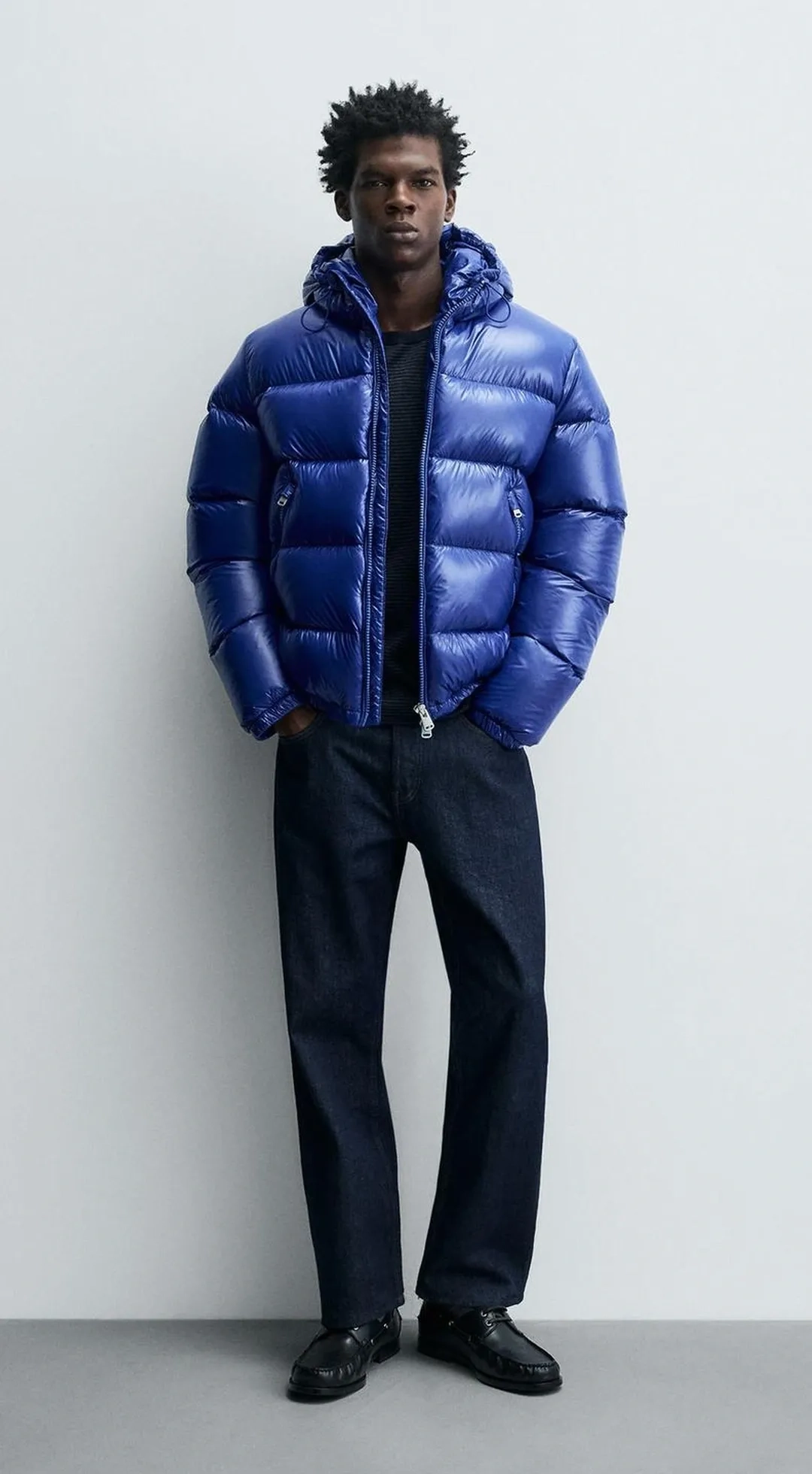
Same on-model denim jacket repurposed to a 4:5 Shopify product crop
4:5 Shopify · PDP
Same on-model denim jacket repurposed to a 1:1 Instagram feed crop
1:1 Instagram · Feed
Same on-model denim jacket repurposed to a 9:16 TikTok Shop crop
9:16 TikTok · Shop
4:5 · 1600 PX · WEBP · BG #FFFFFF · PAD 8%

Garment-aware presets

Knitwear, tees and outerwear each get their own crop, padding and background — applied the moment the garment type is detected.

Shot-type logic

Flat-lay, on-model, ghost — every clothing shot is classified and routed to its own crop chain and sequence slot automatically.

Platform-ready ratios

Shopify 4:5, Instagram 1:1, TikTok 9:16 — one spec sheet per platform, honoured on every export.

ZYNG ENTERPRISE API

Your rules. Our pipeline.
Any catalog size.

Garment presets, shot-type routing, platform ratio maps — all configurable end-to-end on the ZYNG Enterprise API. Tell us how your catalog should behave.

Write to us → contact@zyngai.com
06 Questions & Answers
Knowledge Base

Everything about image standardization

What does the ZYNG OS Image Standardization Engine do?
It is a full visual processing pipeline for product photography. In a single automated pass it can outpaint and resize canvases, swap background colours, remove and clip backgrounds, anatomy-crop to any body position, resequence SKU shots into platform-correct order, and route every asset through conditional workflow rules keyed on category, model angle, and channel — outputting channel-ready assets in WebP, PNG, JPG, AVIF, or TIFF at any DPI, entirely without manual editing.
How does Shot Sequencing work, and can I define my own order?
ZYNG OS reads every shot in a raw SKU folder, classifies each by angle — Full Front, Back, Side, 3/4, Detail, Lifestyle — and maps it to a numbered position defined by your sequence rule. You define the template once (e.g. Position 01 = Full Front, 02 = Back, 03 = Side) and the engine reorders and renames the entire folder automatically at output. You can create unlimited templates — one per retailer, per SKU category, or per campaign — and switch between them per batch via API or dashboard.
What body crop positions does the engine support?
The Body Crop Engine uses anatomy-aware AI to identify joint and limb anchors, then restricts the output frame to your specified crop zone. Supported positions include Full Body, Waist Up (hip to top), Hip to Bottom, 3/4 Angle, Face Close-up, and any custom bounding box you define. All crops are centre-aligned and apply consistent proportional padding, so the result is uniform across your entire catalog regardless of how the original shot was framed.
How does Background Colour Swap work?
The AI Colour Shift engine segments the garment surface using boundary markers, calibrates the detected fabric to a target hexadecimal reference swatch, and preserves the natural shadows, folds, and luminosity of the original shot. You can swap the background to any colour — warm tone, green, purple, or a custom hex — without re-shooting.
What background removal options are available?
The BG Control suite offers three outputs from a single raw image: a clean subject on a transparent or white background (BG Removed), a binary silhouette mask for compositing workflows (Mask Layer), and a vector clipping path embedded directly in the file (Clipped Path). All three use pixel-precise edge detection and are exported as WebP or PNG with embedded alpha, ready for any downstream platform or design tool.
How do conditional workflow rules work?
You define IF/THEN rules once and the engine evaluates every incoming asset against them. Rules can key on product category (footwear renders 1:1 on white with 20% padding, dresses get 3:4 waist-up crops), detected model angle (front, back, side, 3/4, detail — each routed to its own crop chain), and brand or channel (Amazon 1:1 at 2000px, PDP 3:4, Instagram 9:16 under 350 KB). All of it is configurable end-to-end on the ZYNG Enterprise API — write to us at contact@zyngai.com to design your rule set.
How can I customize output formats, quality, and DPI?
Every export is fully configurable. You can select from .WEBP, .PNG, .JPG, .AVIF, and .TIFF container formats, adjust quality compression from 1–100%, set pixel density from 72 DPI (web) to 300 DPI (print), and enforce maximum file size thresholds in KB for automated optimisation. All parameters are available via the Output Settings panel in the dashboard or as API payload fields.
Can the entire pipeline run in bulk through an API?
Yes. Every standardization protocol — Magic Resize, Colour Swap, BG Removal, Body Crop, Shot Sequencing, and Conditional Workflow Rules — is available as an API endpoint and can be chained into a single batch job. Connect ZYNG OS directly to your PIM, DAM, or e-commerce platform to process entire vendor catalogs automatically. Conditional rules, sequence templates, and output specs are all version-controlled and switchable per batch ID or SKU tag.
Get in touch

Write to us at

contact@zyngai.com