Booting AI Studio sandbox...
0%
ZYNG OS · AI Studio

Every function.
Your sandbox.

Every production-ready ZYNG OS function in one sandbox. Set your own aspect ratios and margin guidelines, target exact resolutions, interlink functions into workflows — and run them on one image or an entire catalog.

>_
ZYNG_STUDIO // WORKFLOW_BUILDER
SANDBOX LIVE
Function Chain
01 Background Removal DONE
02 Magic Resize RUNNING
03 AI Colour Shift QUEUED
04 Export & Format QUEUED
Your Guidelines
Aspect Ratio Custom · 4:5
Canvas 2400 × 3000 px
Margins T/B/L/R 8 / 8 / 0 / 0 %
Alignment Center / Center
Resolution 4K · 3840 × 2160
Outputs / image 3 variations
Run Mode BULK · 248 SKUs
BATCH_PROGRESS
001 / 248 ASSETS
01 The Studio Toolkit
9 Endpoints Live

Nine functions.
Granular control.

Every visual intelligence endpoint in ZYNG OS, ready to try in the sandbox. Call any function individually or chain them in sequence — each accepts custom parameters per SKU, channel, and brand rule, so outputs are always contextual, never templated.
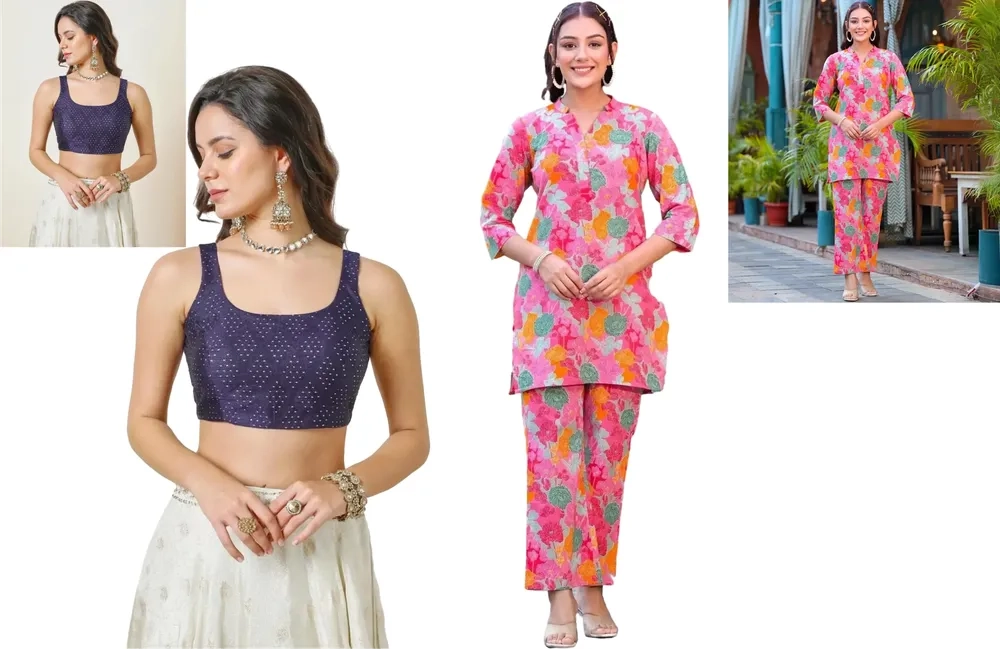
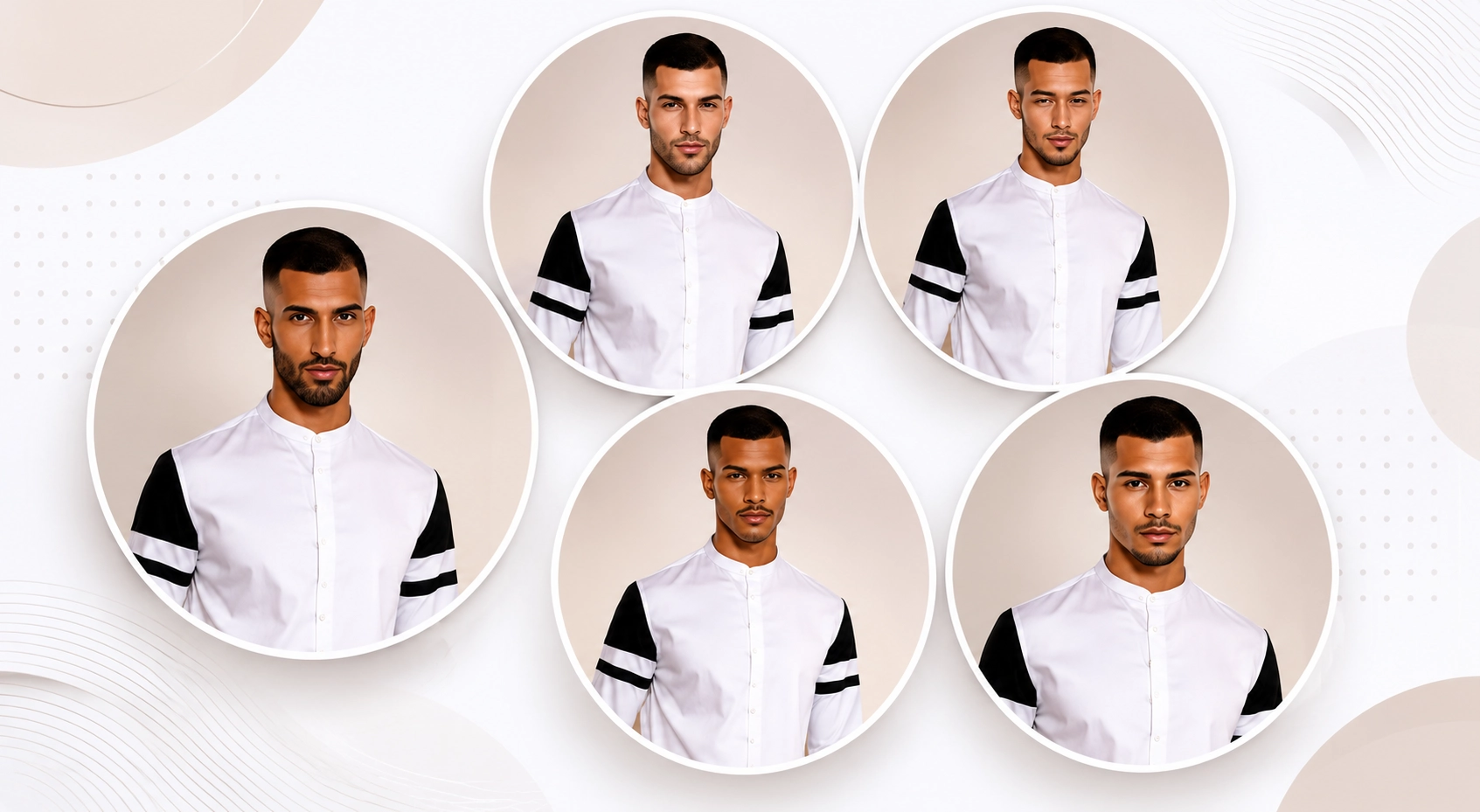
ZYNG_STUDIO // FUNCTION_INDEX 9 / 9 ENDPOINTS LIVE
Background Removal Model Swap Subject Focus AI Colour Shift Smart Swatch Magic Resize Precision Crop Remove Elements Canvas Control 01 / 09
Function 01 / 09

Background Removal

POST/v1/bg-removal

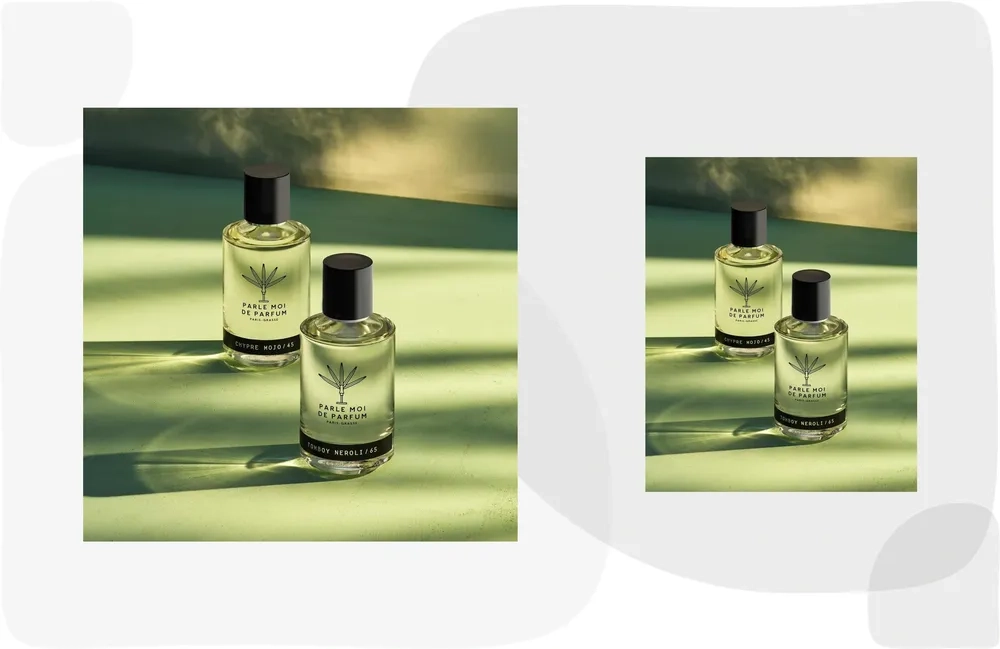
Pixel-precise subject extraction with embedded vector clipping paths — clean cutouts, masks, and alpha exports from a single raw shot.

Run this function
Call individually Chain in sequence Custom params · SKU · channel · brand
Test Vision Intelligence End Points

Upload your asset and see real-time transformation.

Try in Sandbox →
02 Sandbox Controls
Parameters Open

Your guidelines.
Pixel-perfect, every time.

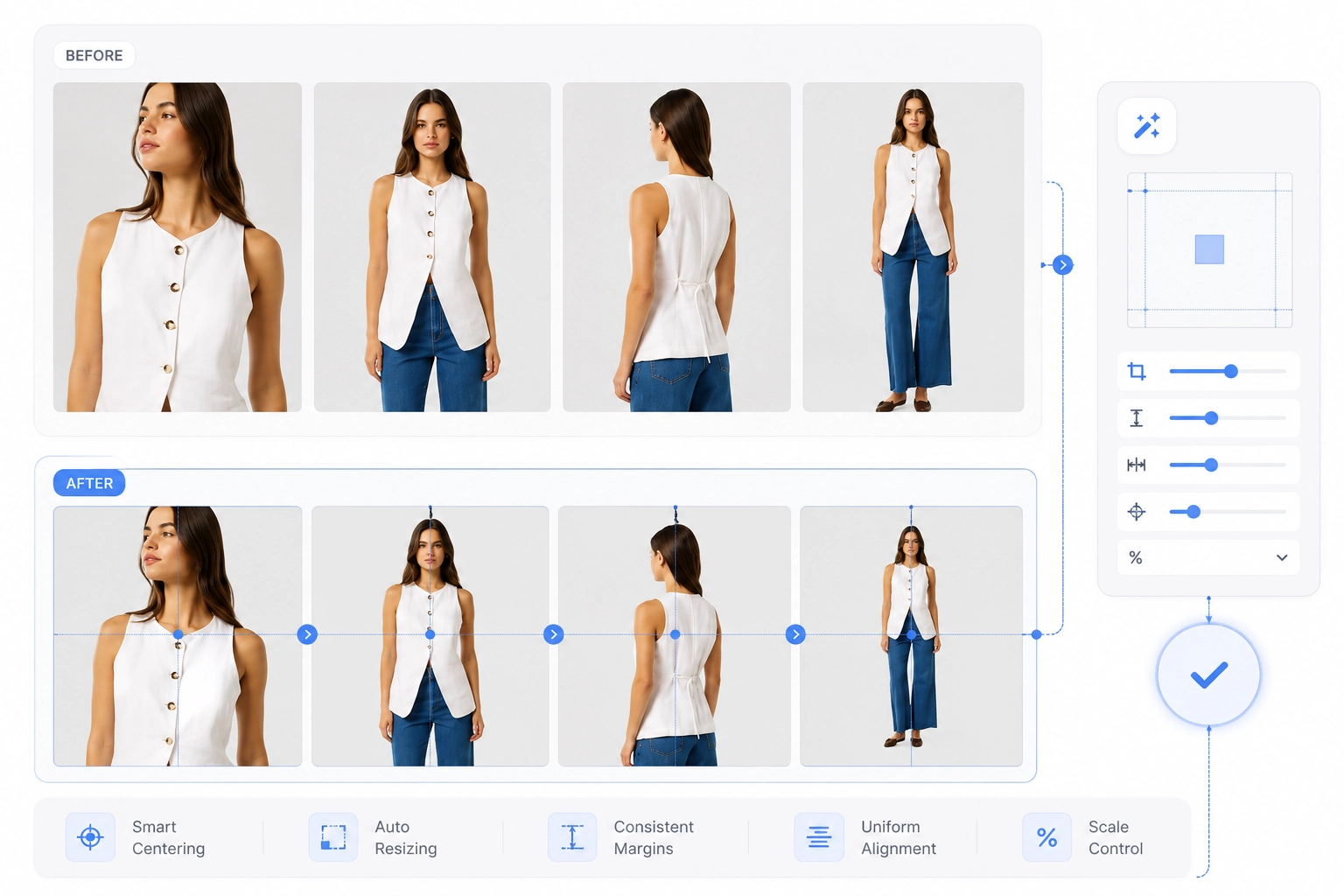
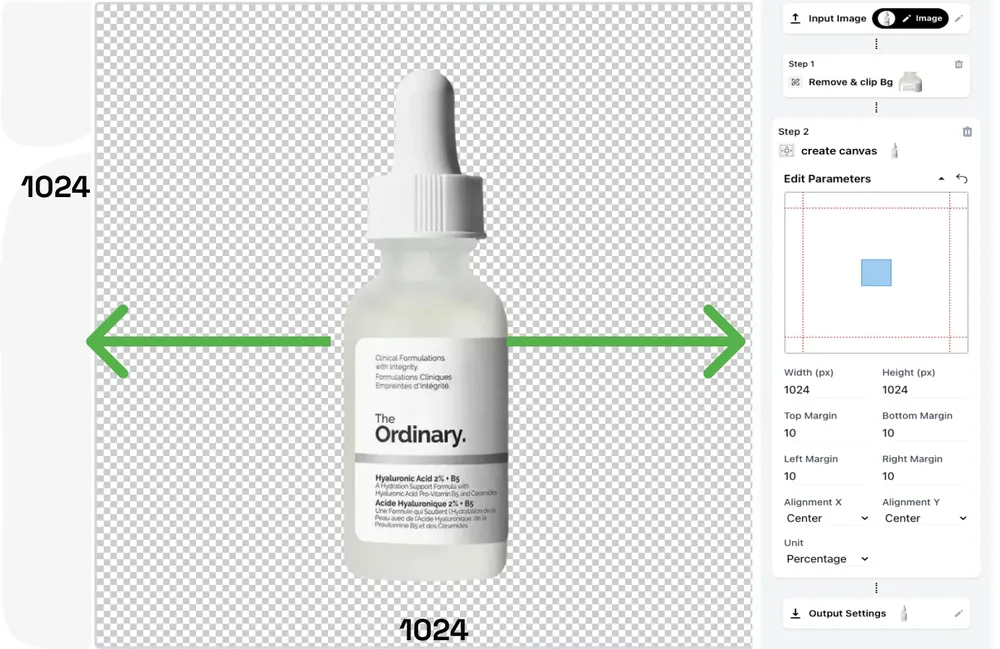
Watch the canvas obey. Set any aspect ratio, define per-side margin guidelines, target HD, 4K, or 8K — and the engine re-frames every asset to spec, automatically zeroing margins where the product is cropped.

CANVAS_SIMULATOR // LIVE 1:1
T 8% B 8% L 6% R 6% SKU_0042
SMART RECOGNITION · SIDE MARGINS → 0
Output Spec · Live
Aspect Ratio 1:1
Resolution 1920 × 1080HD
Margins T·B·L·R 8 8 6 6
Unit / Align % · Center / Center
Channel PDP · Marketplace
AUTO-CYCLING PRESETS
Drop Images or Folders
0001 / 1000
Batch Processing · Same Guidelines
× 3 VARIATIONS / IMAGE Uniform, Channel-Ready Output
Try in Sandbox →
03 Workflow Engine
Composing

Interlink functions.
Watch it run.

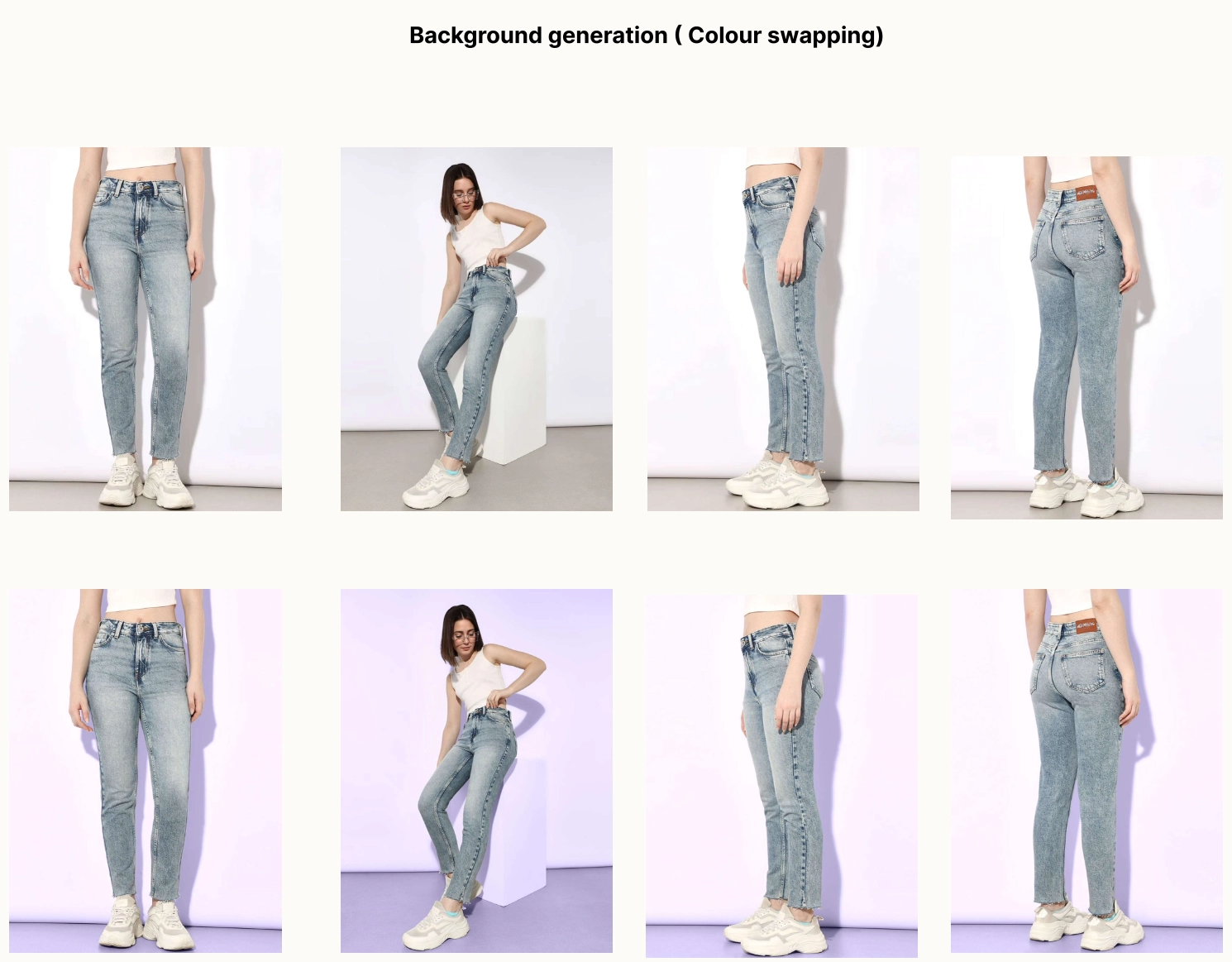
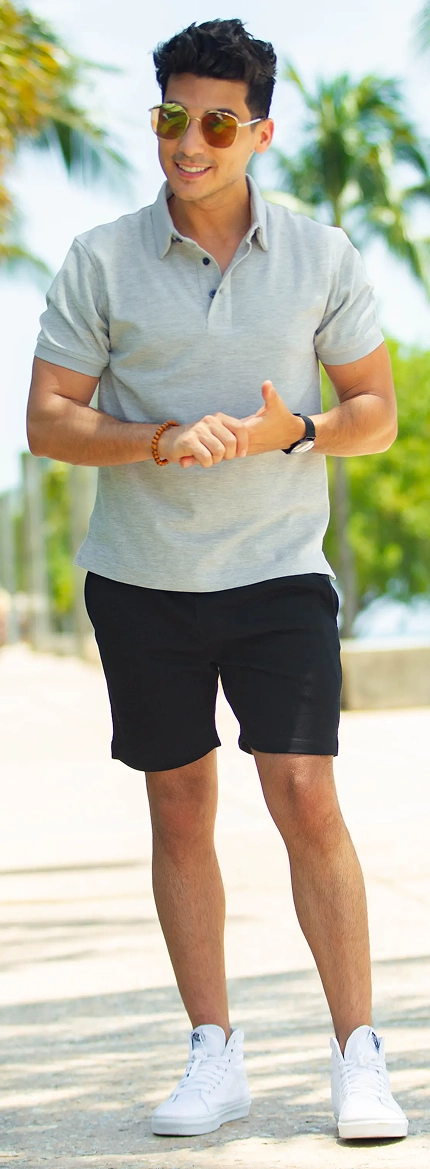
Follow one figure through the chain: cropped at the nose — everything above removed, the remaining body cut-out is resized and outpainted, its background colour shifts, and the file ships in a new format. Each step pipes its result into the next — run it on one asset, or point it at ten thousand.

⛓ Chained Workflow ▶ Run Individually ⚡ Run in Bulk
WORKFLOW_01 // CROP_RESIZE_RECOLOUR_EXPORT >_ initialising pipeline
Step 01 · Precision Crop QUEUED
NOSE & ABOVE → REMOVED
Crop Nose remove: nose & above
keep: body below
Step 02 · Canvas QUEUED
4:5
CUT-OUT RESIZED · OUTPAINTED
Magic Resize input: body cut-out
canvas: 4:5 · outpaint
Step 03 · Colour QUEUED
#D97706
BG SHIFTED · SUBJECT UNTOUCHED
AI Colour Shift target: hex swatch
subject: preserved
Step 04 · Export QUEUED
.WEBP 2.40 MB 4K · 300 DPI
FORMAT CHANGED · OPTIMISED
Output Format format: webp / avif / png
size cap: < 250 KB
BULK RUN 0001 / 0248 SKUs
RUN STEP ▶ RUN WORKFLOW IN BULK ⚡

Run individually

Test any single function in isolation with live previews — tune parameters until the output is exactly right before committing to a batch.

Chain into workflows

Pipe the output of one function into the next. Reorder, add, or remove steps freely — each step keeps its own guidelines and parameters.

Execute in bulk

Point a saved workflow at a folder and run it across thousands of SKUs. Same chain, same guidelines — perfectly uniform output at catalog scale.

Try in Sandbox →
04 Swatch Extraction Engine
Catalog Enrichment

Texture & Pattern Swatches.
Extracted Automatically.

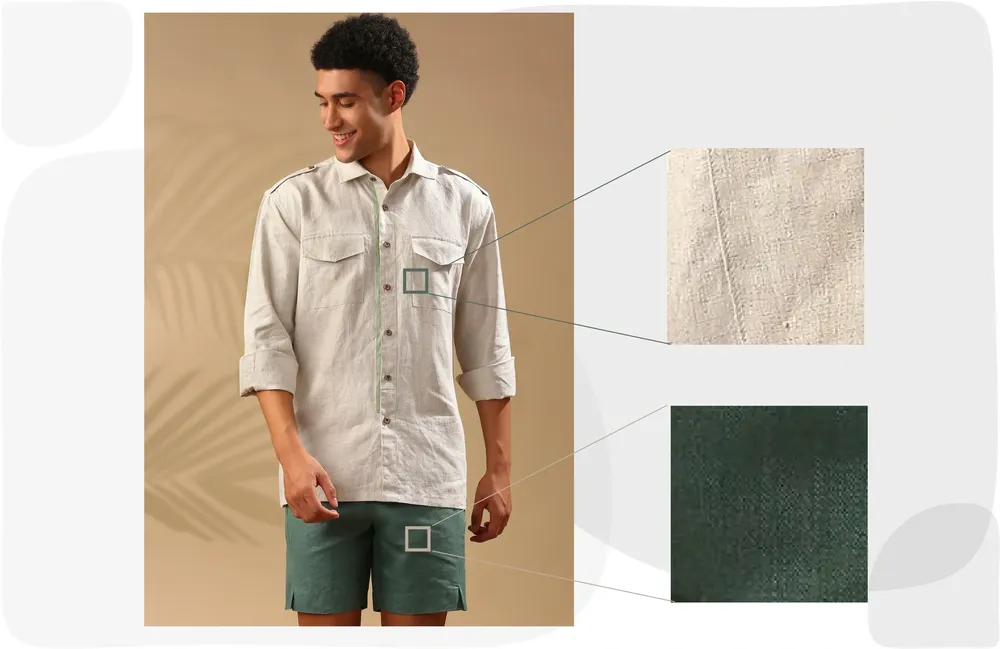
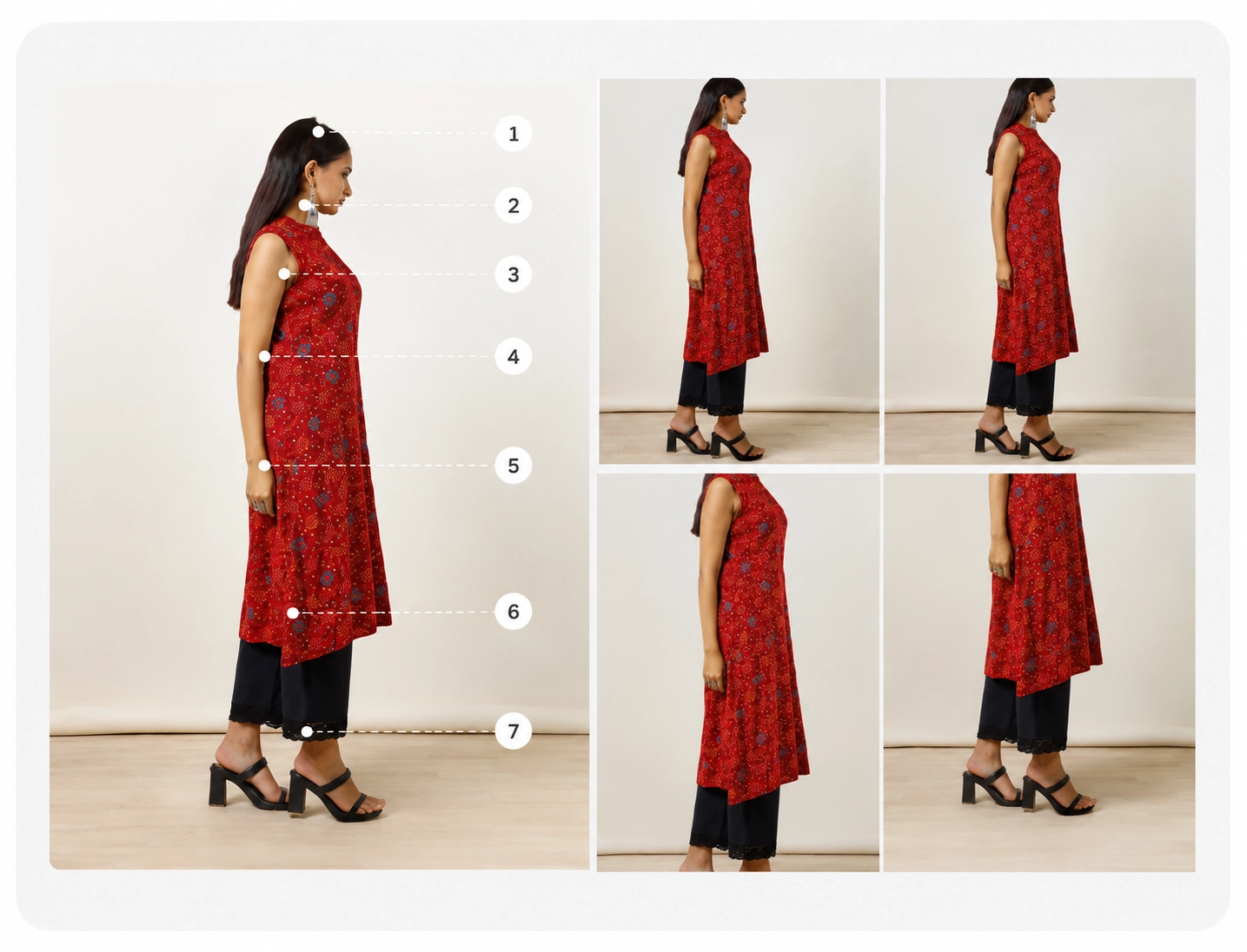
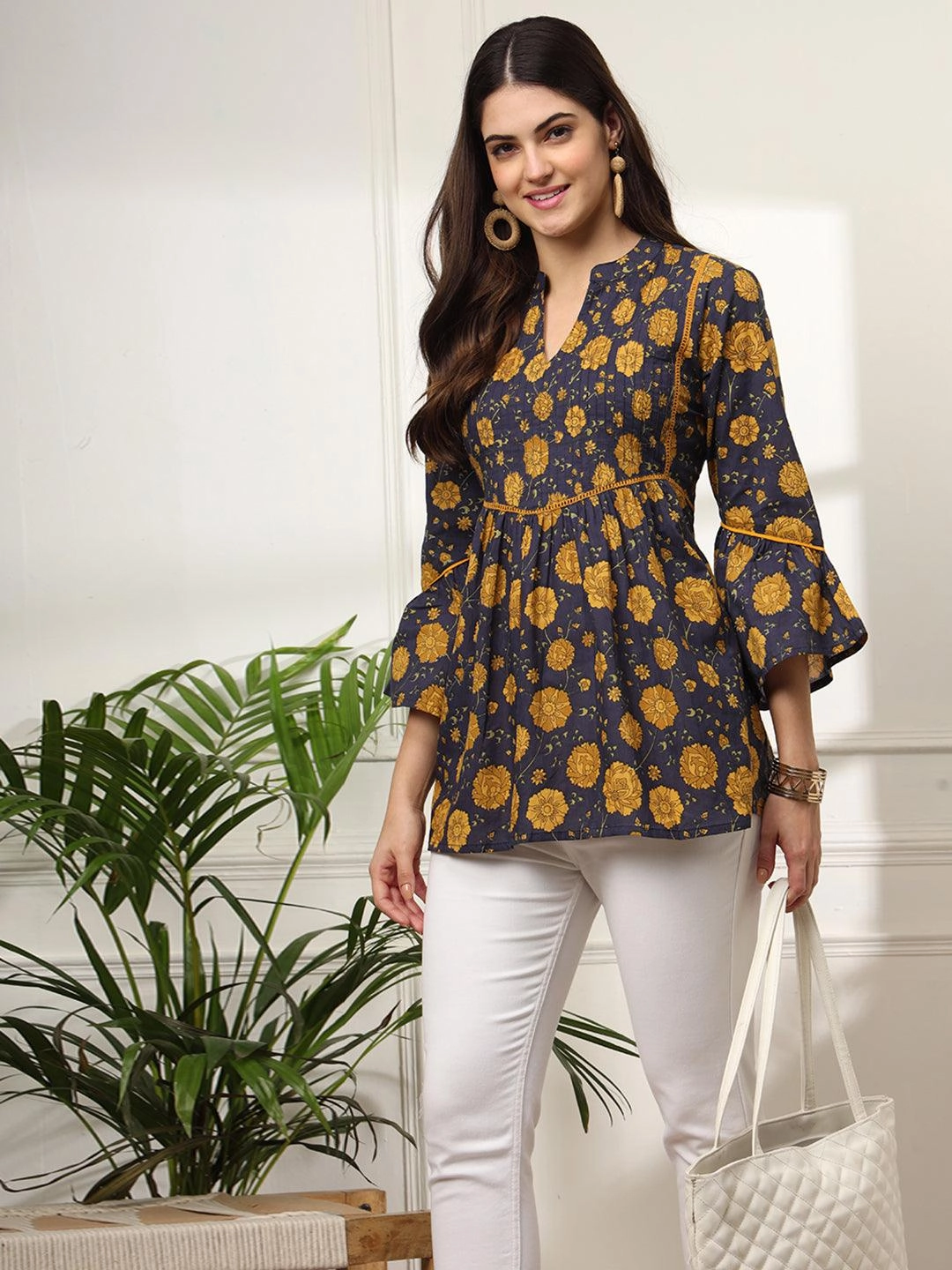
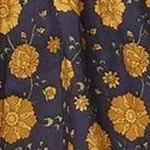
ZYNG OS detects fabric regions and pattern repeat units within raw SKU images and generates standardised, print-ready swatch assets — configurable by type, shape, and cloth category.
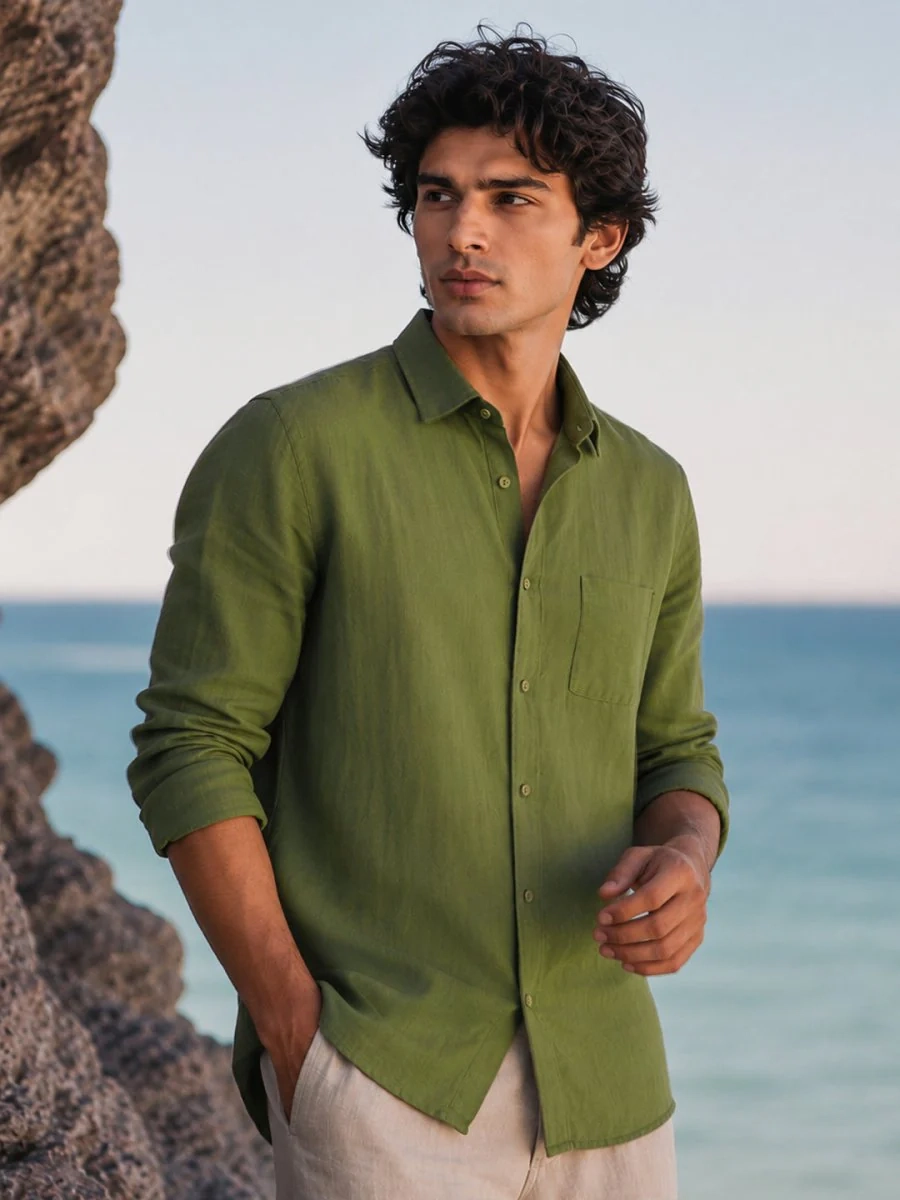
Fabric Swatch Texture Extraction
Fabric raw input
Raw Garment Input
↓ Macro Crop · 300 DPI
Extracted Swatch
Fabric texture swatch
1:1 Square 300 DPI WEBP TIFF
Design Swatch Pattern Extraction
Pattern raw input
Raw Garment Input
↓ Tile Isolation · Vector
Extracted Swatch
Design pattern swatch
1:1 Square Repeat tile WEBP SVG
swatch
Edit Parameters
select swatch type
Fabric Swatch
Design Swatch
select swatch shape
select clothing type
Try in Sandbox →
05 Questions & Answers
Knowledge Base

Everything about the AI Studio

What is the ZYNG OS AI Studio?
AI Studio is the self-serve sandbox layer of ZYNG OS. Every production-ready function — Magic Resize, AI Colour Shift, Precision Crop, Background Removal, Model Swap, Subject Focus, Smart Swatch and more — is available to run directly in your browser, with your own aspect ratios, margin guidelines, resolution targets, and batch settings. Functions run individually, or interlink into workflows that process entire catalogs.
Can I set my own aspect ratios and margin guidelines?
Yes. Each function accepts a custom width and height in pixels plus independent top, bottom, left, and right margins — in percentage or pixel units — with X and Y alignment control. Smart Product Recognition understands your product and automatically keeps margin 0 on sides where the product is cropped, ensuring optimal product visibility while adding margins only where needed.
What output resolutions does the sandbox support?
Target HD (1920×1080), 4K (3840×2160), or 8K (6000×4000) presets, or define fully custom dimensions. Pixel density is configurable from 72 DPI for web through 300 DPI for print, with exports in WebP, PNG, JPG, AVIF, or TIFF.
How does batch processing work?
Upload individual images or drag and drop entire folders, choose how many output variations to generate per image, and start the batch. Every asset in the job inherits the same guidelines — aspect ratio, margins, resolution, format — so the output set is perfectly uniform across the whole catalog.
Can I chain functions into a single workflow?
Yes. The workflow builder lets you interlink individual functions — for example Background Removal → Magic Resize → AI Colour Shift → Export — into one pipeline. Each step keeps its own parameters, steps can be reordered or removed freely, and the whole chain runs on a single image or in bulk across thousands of SKUs via the dashboard or API.
How does the Swatch Extraction Engine work?
ZYNG OS detects fabric and pattern regions within a raw garment image and runs two separate extraction workflows. For Fabric Swatches, it performs a macro crop of the textile surface and outputs a 1:1 square tile in WebP and TIFF. For Design Swatches, it isolates the pattern repeat unit, tiles it, and outputs a clean raster swatch. Both workflows are configurable by swatch width, height, shape, and cloth type, and trigger conditionally based on what the engine detects in each SKU.

Open the sandbox and start building.

Upload an asset, set your guidelines, chain your first workflow — and see channel-ready output in minutes.

Try in Sandbox → API Integration
Get in touch

Write to us at

contact@zyngai.com